 manyframe
DALL·E 2.
Explore a scene from a written brief, or investigate an image-edit route for a focused change to an existing visual.
Available models and settings are shown in your studio. Review the quote before generating.
The route.
The right inputs.
Start from the creative job, then choose the model and settings that fit it.
Model ID dall-e-2
- Generation
- Standard image request fields are forwarded
- Editing
- JSON or multipart image inputs and an optional mask
- Size and output count
- Confirm the choices supported by the selected DALL·E 2 route
Capabilities describe the Manyframe connector. Your studio shows the currently enabled route, supported settings and maximum charge.
Make the edit small enough to judge.
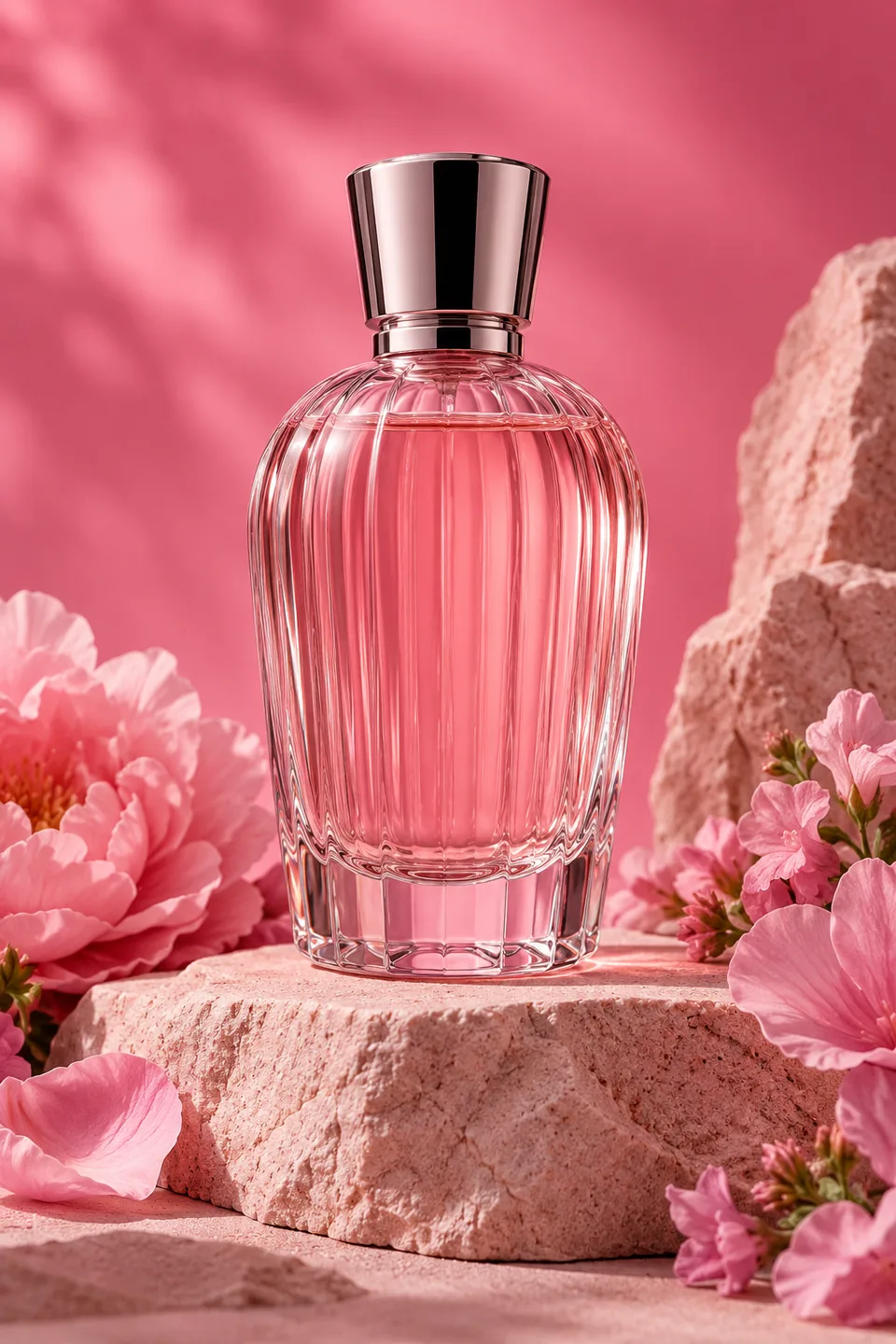
For a product scene, separate the object you need to preserve from the background you want to change. A brief such as “replace the studio wall with warm pink stone; keep the bottle and its label unchanged” gives you a clear comparison to make after generation.
The OpenAI connector can forward image uploads and a mask on its edit endpoint. Confirm that your selected DALL·E 2 route accepts the input format and dimensions before preparing a batch. A mask describes the intended editing area; it does not guarantee that every detail outside it will stay identical.
Good questions. Clear answers.
Still curious? Browse all FAQs
Can I send a mask with an image?
The connector forwards an optional mask on a compatible image-edit request. The selected provider route determines the accepted image and mask formats.
Does the adapter set a universal image size?
No. It forwards the image request rather than defining model-specific size limits. Use the settings accepted by your enabled route.
Give one visual a new setting.
Choose the source, define the change and review the quote.