 manyframe
Make your product the plot.
Marketing Generation turns your product brief into a three-scene video. Show what it does, give the reveal some drama, and finish with a clear reason to act.
3 scenes · Hook, benefit and call to action · 9:16 video
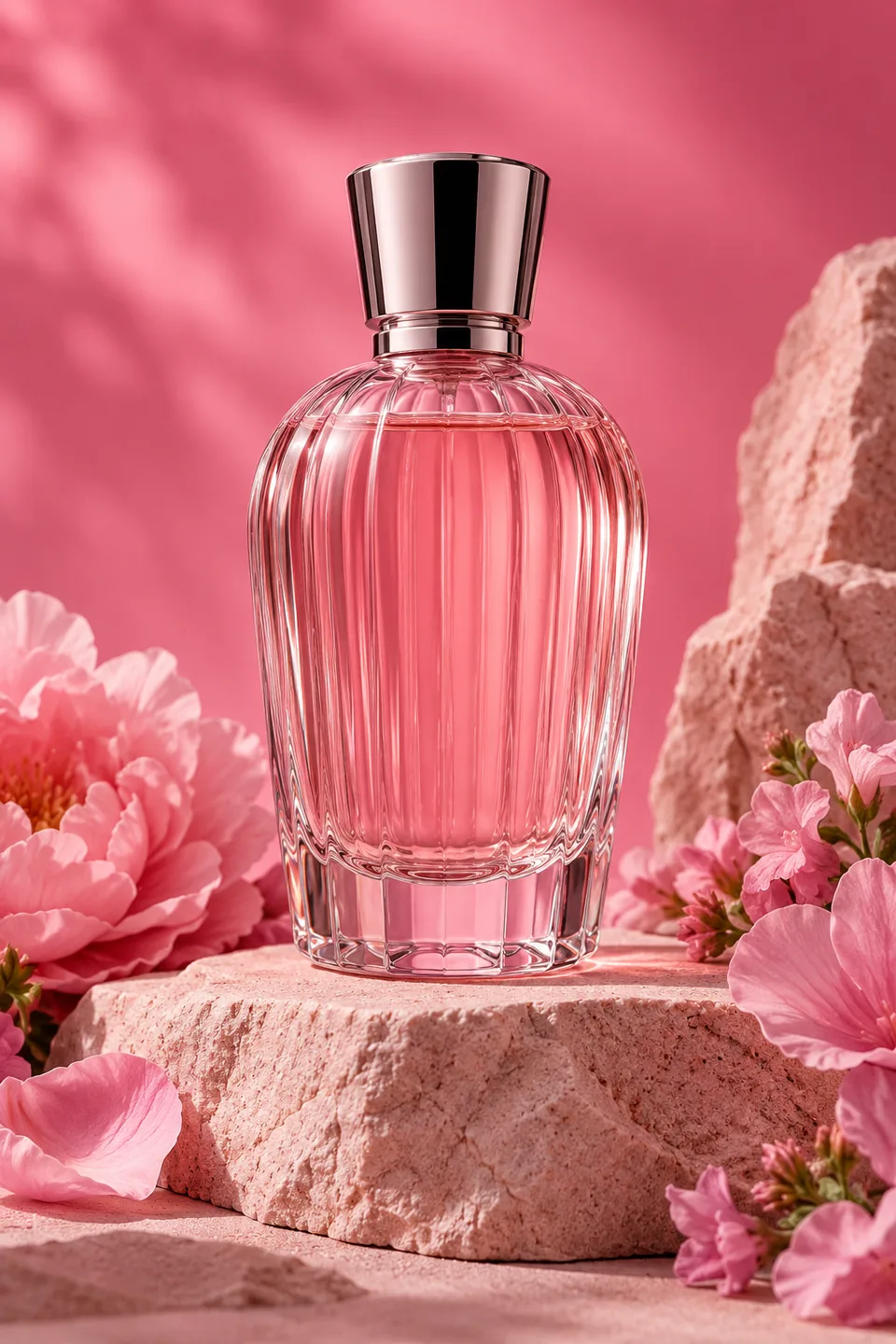
Choose the story your product needs.
Product Demo puts a factual benefit at the center: a hook, the product in use, and a call to action. CGI Showcase gives the reveal a more sculptural, studio-style direction.
Both Marketing Generation styles use three editable scene prompts and create a finished vertical video. You can review the direction before committing to generated frames and animation.
Give each scene a job.
- Hook
- A concrete reason to look at the product.
- Benefit
- The feature, use or reveal your references can support.
- Call to action
- A clear next step to close the product story.
Build the creative in decisions you can review
Bring the product
Add one to four clear product references. Describe packaging, color, materials, logo position, audience, and the benefit you can support.
Shape the three scenes
Choose Product Demo or CGI Showcase. Review the hook, benefit, and call to action; edit scene and animation prompts.
Check the product frames
Review the generated source frames for product fidelity. Inspect labels and shape before approving the video stage.
Approve and assemble
Review the animation quote. Once generation completes, inspect the assembled clip, cover, caption, and source assets.
Spend on the frames you actually want to animate.
A beautiful scene is useful only if the product is right. The frame checkpoint makes that review part of the workflow.
Call out the details that matter: the number of bottle caps, the shape of a sole, a specific label placement. Inspect each approved frame against your original references.
Generative models can change text, proportions, or materials. Reference control gives you a starting point and a review process; it does not guarantee exact replication.
Write a more useful product-video brief →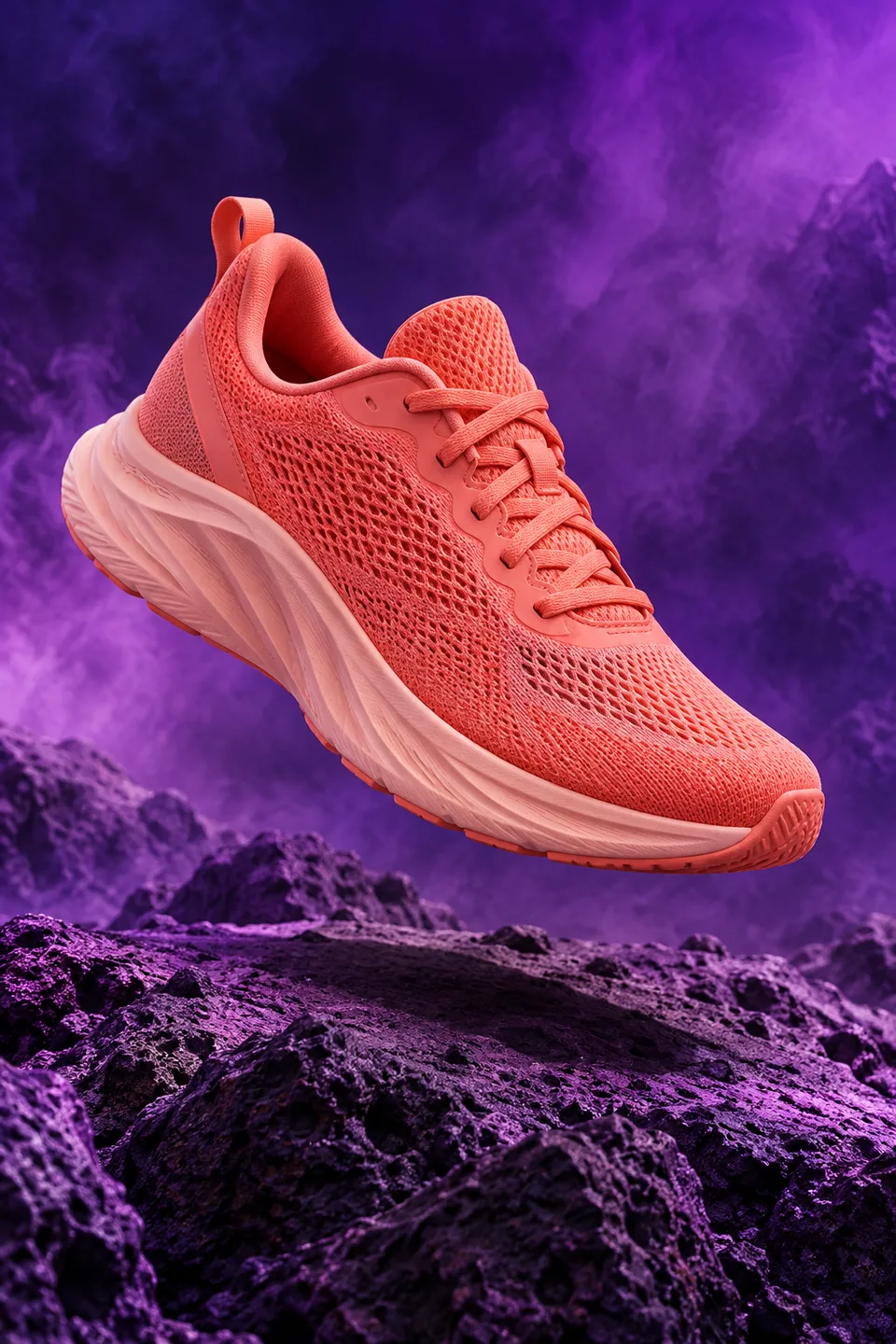
The finished film. And the frames behind it.
Review the assembled product story and keep its source work with the delivery.
- The film
- One 9:16 product video
Three scenes shaped around the hook, product benefit and call to action.
- The handoff
- Cover + caption
A cover image and caption for your review alongside the finished film.
- The source
- Scene assets + ZIP
Individual scene assets and a downloadable source bundle saved with the project.
Output depends on the selected available image and video models. The artwork on this page is illustrative; the Examples page identifies the model, prompt and provenance of each real Studio animation.
Good questions. Clear answers.
Still curious? Browse all FAQs
What should I upload?
Use one to four clear views of the real product. Include the whole object and important packaging details. Add an identity brief explaining what must remain consistent.
Can I create a simpler clip?
Yes. Product Motion turns one approved product image into a five-second silent 9:16 clip with a cover and downloadable ZIP. It is a focused choice when you need movement rather than a three-scene story.
Does Manyframe add music?
You can provide optional audio that you own or have licensed. Generated music is not part of this workflow. Review audio rights and the final mix for your intended use.
Will this improve my ad performance?
Manyframe helps create and reuse creative assets. It does not promise conversion lifts, virality, or a particular campaign result. Review factual claims and test the creative with your own audience.
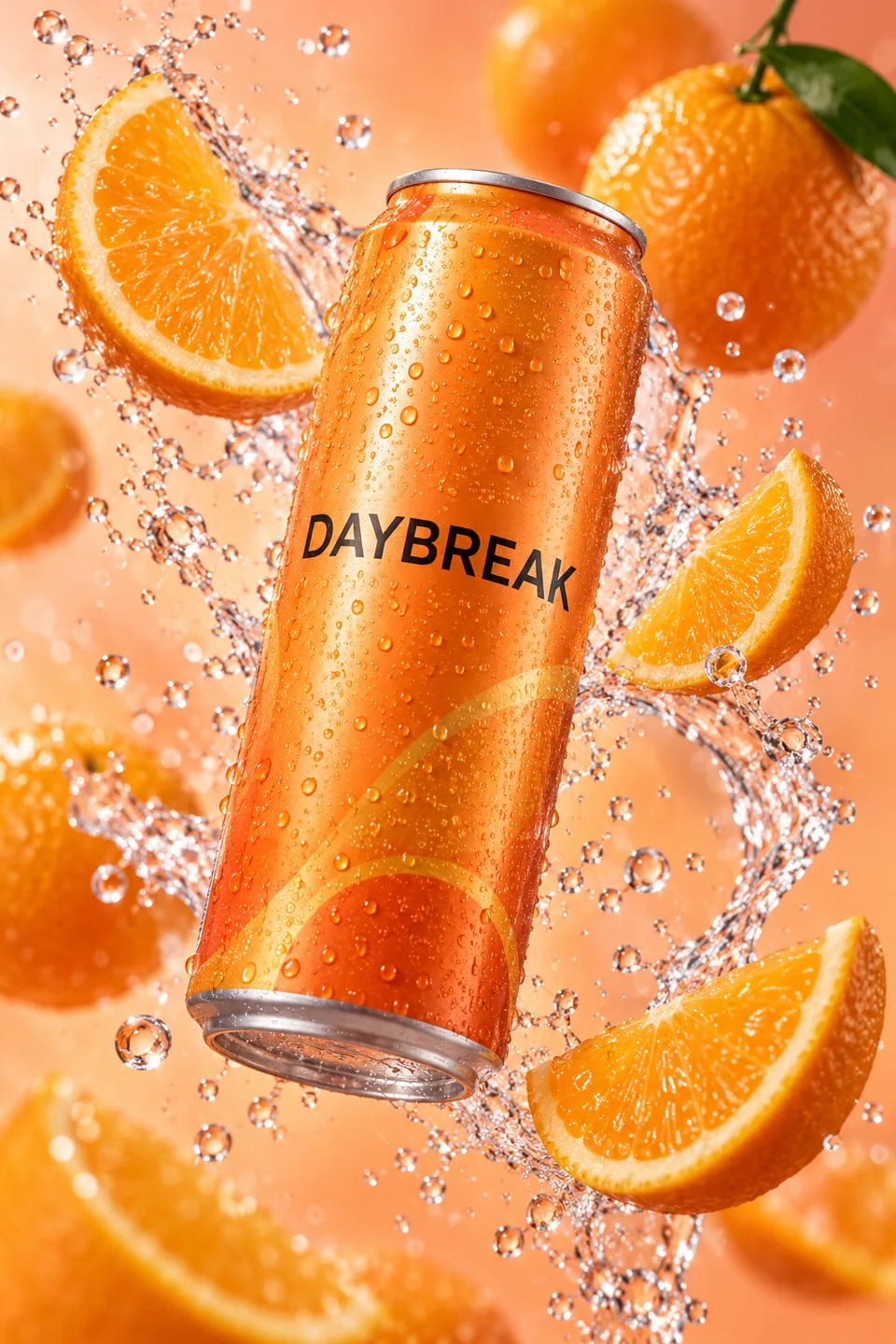
Start with the product. Finish with a story.
Open Marketing Generation, add your references, and review the first scene plan.