 manyframe
Three product ads. One clear offer.
Bring the product, the audience and the reason to buy. Shape three ad concepts, review the artwork and put your approved copy on top. A focused workflow for static campaign creative.
3 ads · 1080 × 1350 PNG · Editable concepts and copy

A good ad begins with a specific offer.
Add one to four clear product views. Enter your brand kit, the audience you want to reach, a factual offer and the action you want them to take. These details give each concept something concrete to work with.
The plan gives you three editable concepts with image prompts, hooks, body copy, calls to action and captions. Compare the angles, sharpen the claims and change the wording before generating the artwork.
Bring these to the brief
- Product references
- Clear views of the real shape, packaging and label.
- Manual brand kit
- The brand details and visual direction you want to use.
- Audience + offer + CTA
- Who it is for, what you can claim and where to go next.
Generate the image. Typeset the words.
The headline belongs in a text layer you have approved.
Ads Generation creates the product artwork first, then typesets approved ad copy separately. The hook, body and call to action are rendered over the image, rather than relying on an image model to invent readable campaign text.
That separation makes copy a deliberate part of the review. Check the factual offer, spelling, text placement and product fidelity in the finished PNGs before you publish.
Text already printed on a product in the source image can still change during generation. Inspect packaging and labels against your references as well as the separately rendered ad copy.
From product brief to three ad directions
Bring the offer
Upload one to four product views. Add your brand kit, audience, factual offer and call to action.
Edit the concepts
Review three directions. Change the image prompts, hooks, body copy, calls to action and captions in the plan.
Approve the image quote
Review the selected image route and generation cost before creating the product artwork.
Review the finished ads
Check the artwork with its separately typeset copy, then download the PNGs, source imagery, copy and ZIP.
Three ads, with the source work attached.
The delivery is a static ad pack. Take the approved creative into your own campaign setup and audience tests.
- The creative
- 3 portrait PNG ads
Three 1080 × 1350 images with separately typeset, approved ad copy.
- The review
- Pack preview
Compare the finished ad directions together before selecting what to publish.
- The handoff
- Source imagery + copy
Keep source images, captions and copy with a downloadable ZIP of the ad pack.
Need a product video? Marketing Generation creates a three-scene vertical film; Ads Generation creates static images.
Before your next campaign
Still curious? Browse all FAQs
Does Ads Generation create video ads?
This workflow creates three static 1080 × 1350 PNG ads. For a product video with a hook, benefit and call to action, choose Marketing Generation.
Can I change the ad copy before generation?
Yes. The three concepts include editable hooks, body copy, calls to action and captions, as well as image prompts. Review your offer and claims in the plan before approving the image stage.
How is the text placed on the artwork?
The artwork is generated first and approved ad text is typeset separately. Text printed on product packaging inside the generated image still needs a fidelity check against the reference.
How many product references can I add?
Add one to four clear views of the product. Include the whole object and details that matter, such as shape, materials, logo position and packaging.
Will Manyframe launch the campaign for me?
Ads Generation delivers the creative pack for your review and download. Choose the approved assets for your campaign, review the claims and destination, and test performance with your own audience.

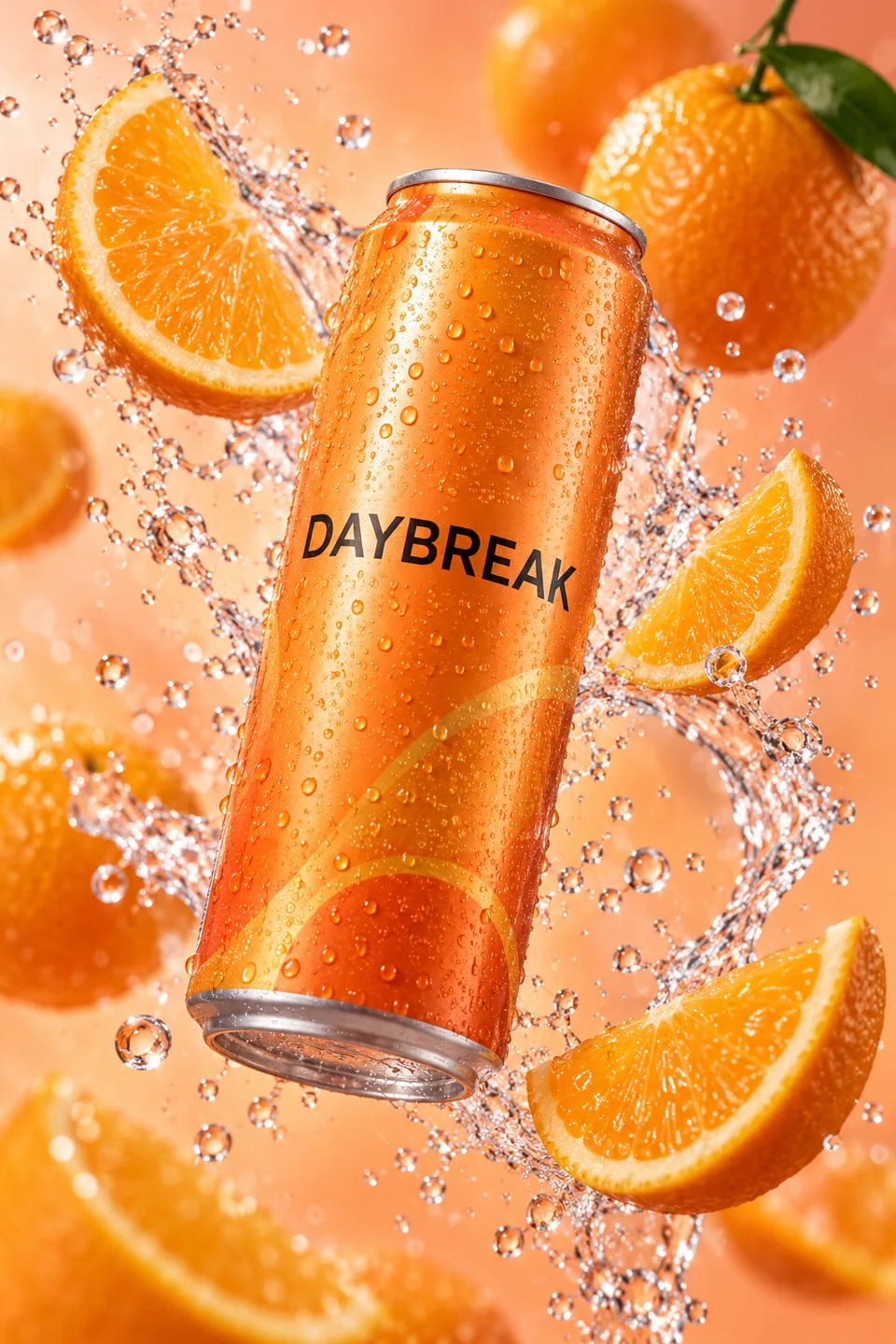
Give your next offer three directions.
Open Ads Generation, bring the product and review the concept plan.