 manyframe
Write the shot. Explore the motion.
Give an idea a subject, a setting, and something to do. Use text-to-video routes available in Studio to explore a visual direction before building the bigger story.

A shot brief beats a wish list.
Start with one visible subject and one action. Add the setting, camera movement, lighting, and pace. A short clip is easier to direct when it does not have to introduce a dozen events.
Use text-to-video for exploring an atmosphere or an original scene. When the exact product appearance matters, reference-led generation is a more grounded starting point.
Try a brief like this
“A sculptural glass bottle on a stone plinth. A soft band of sunlight moves across the scene. Slow camera push-in, warm afternoon colors, restrained motion.”
Model support, duration, resolution, and other controls vary. Studio shows the capabilities of the route you select.
Make the idea concrete
Choose a supported route
In video Studio, choose an available model that accepts text input. Availability and controls are route-specific.
Describe one scene
Specify the subject, visible action, setting, camera, and mood. Review the model’s input requirements and supported settings.
Approve the maximum charge
Read the live quote for your exact setup before starting the job. A new run or different settings can carry a new charge.
Review the generated clip
Check motion, continuity, and unwanted details. Use the result as an asset or refine the brief for a separately quoted generation.
Want a product ad? Bring the product into the process.
A written description is useful for a scene. Your product references give a campaign a firmer anchor.
Marketing uses one to four product images, a product identity brief, and a reviewed three-scene plan. You inspect the frames before approving animation, then receive a 9:16 clip, cover, caption, and source bundle.
Use that workflow when a package, color, or product shape needs your explicit attention. Generative fidelity still requires review; neither text nor references guarantee perfect details.
Explore the video-ad workflow →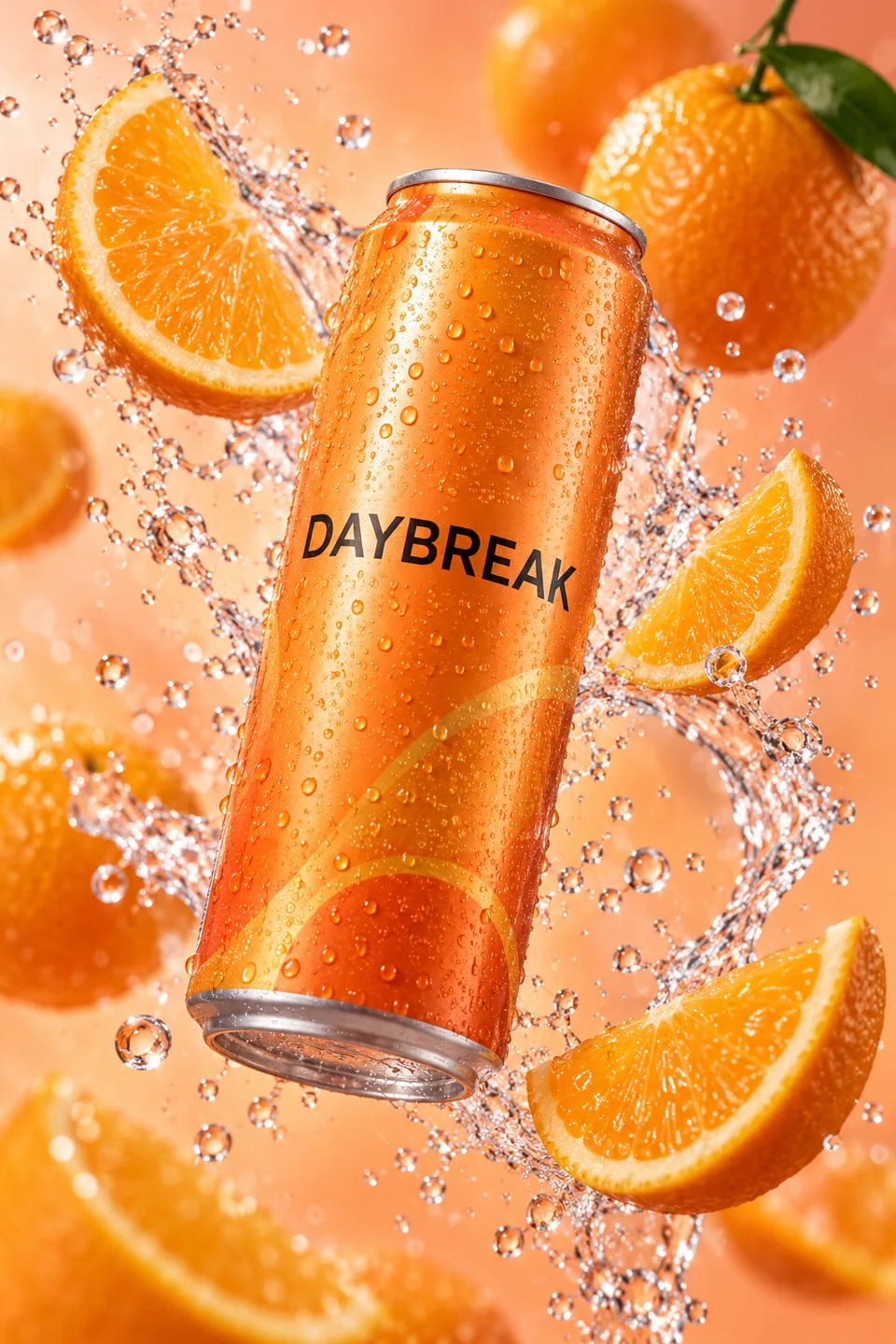
Good questions. Clear answers.
Still curious? Browse all FAQs
Can I start with only a prompt?
Yes, when the selected available video route supports text input. Some models require an image or other references instead, so check the route capabilities shown in Studio.
Does a prompt make a complete edited advertisement?
A Studio generation produces the output supported by that model. A reviewed multi-scene product video is a separate Marketing or Trend Story workflow with its own inputs and generation stages.
Can I request an exact brand or real person?
Use content and references you have permission to use. Generative text-to-video is not a promise of exact identity, packaging, text, or logo reproduction. Review both rights and the final result.
How long will a generation take?
Timing varies with the selected model, settings, and provider load. The project records job progress and outcomes; this page does not promise a fixed turnaround time.
Give the idea a first shot.
Explore available video models, supported inputs, and live prices.