 manyframe
Your best image has another move.
Give a product shot a slow push-in, a moving light, or a little atmosphere. Start with the frame you already love and turn it into a motion clip.
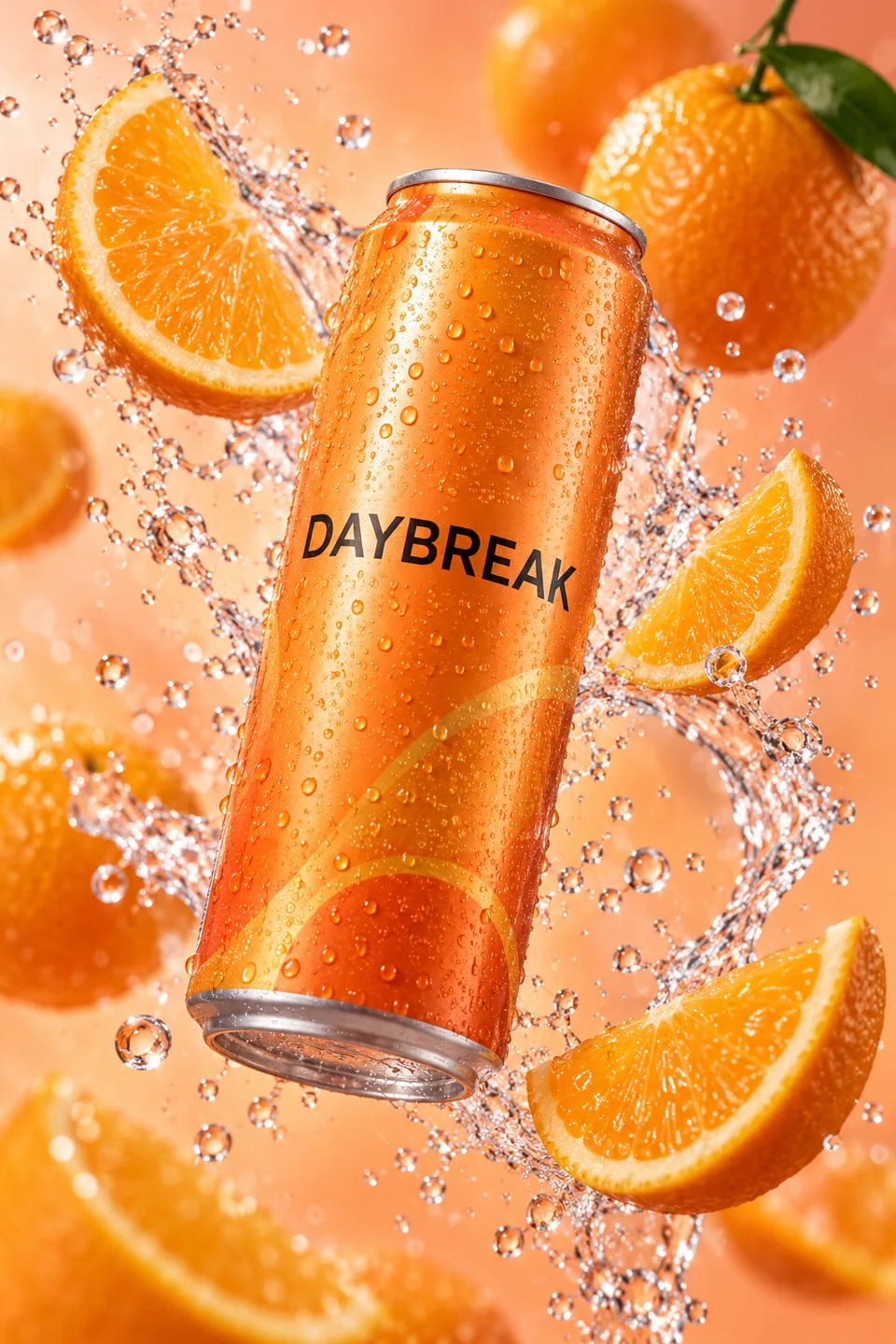
Keep the brief about movement.
One strong still is a useful starting point. A focused direction tells the model what should move around it.
- Camera. Describe a gentle push-in, a lateral move, or a restrained orbit.
- Light. Let a highlight cross the surface or ask for a soft lighting change.
- Atmosphere. Add background movement while keeping the product readable.
Start simply. Asking for a new package, another angle, and a complicated action in the same clip can make a clean source image harder to preserve.
From still to first clip
Choose a clear image
Upload one complete product view. Check the crop, label, background, and source aspect ratio before continuing.
Describe the motion
Write the camera, lighting, or background movement you want. Product Motion is designed for motion around an approved product image.
Approve the quote
Review the selected available route, settings, and maximum charge. Generation starts after your approval.
Review and reuse
Return to the saved project, inspect the generated clip, and download the result or use it in your next creative.
Compose for the final frame.
The guided Product Motion preset creates a five-second, silent 9:16 clip at 720p. Choose a reference that leaves the whole product readable in a vertical composition. Review the final framing against your source before export.
For a story assembled from several scenes, the Trend Story workflow creates a 9:16 output with a cover and caption.
A practical motion brief
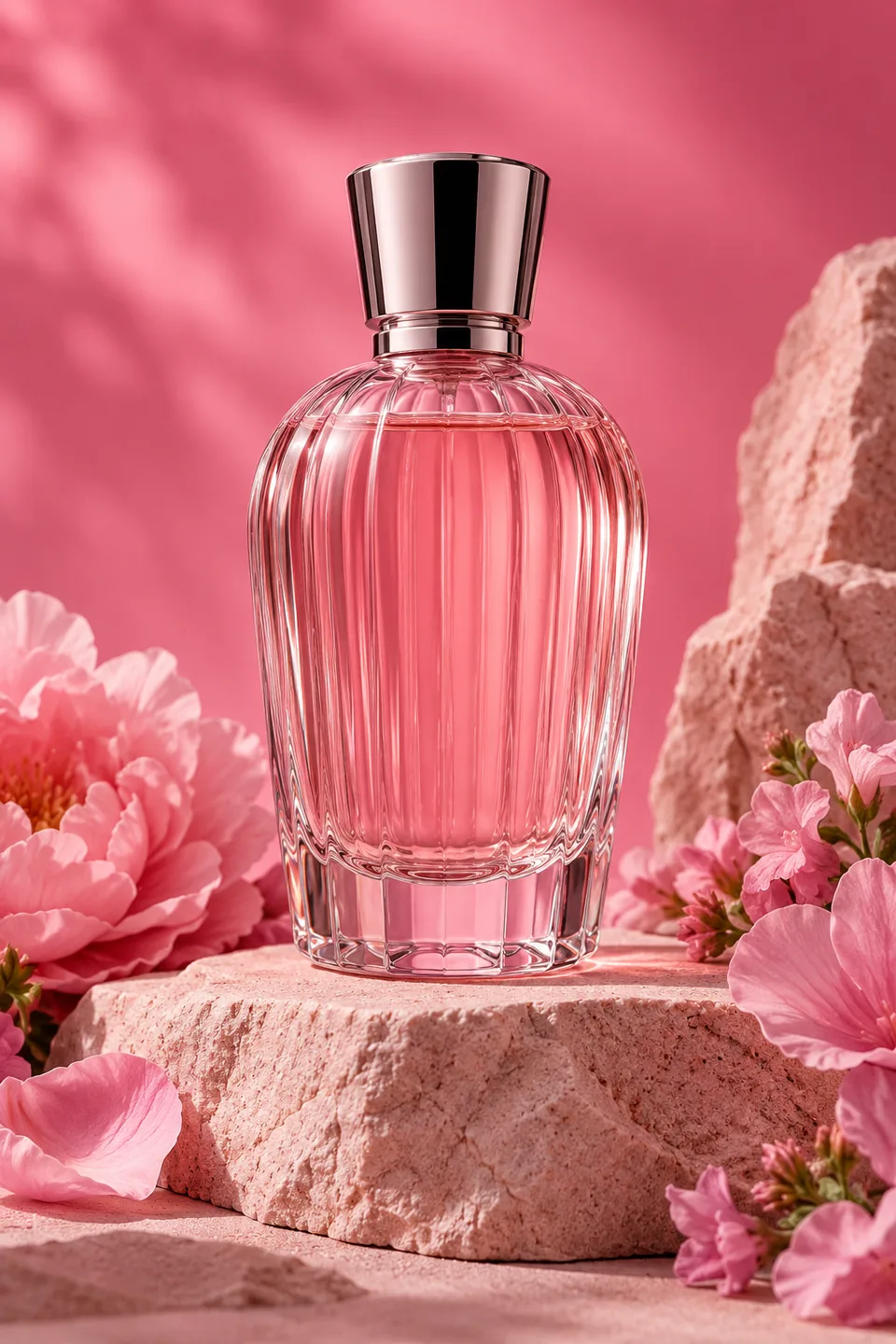
“Slow push-in. Soft light moves across the bottle. Keep the cap, label, color, and bottle shape consistent. The background shifts subtly.”
This describes an intention. Generative video can still change small details, so review packaging, logos, and movement before using a result.
Good questions. Clear answers.
Still curious? Browse all FAQs
Do I need a video to start?
No. Product Motion starts from one image and a written motion direction. Use a clear source that you own or have permission to use.
Will every label stay perfectly readable?
Product-reference instructions guide the model, but exact text and geometry are not guaranteed. Review each result closely, especially small packaging details and logos.
How much does image-to-video cost?
The price depends on the available route and its settings. The app shows a live maximum-charge quote before you approve generation; this page does not promise a fixed price or included reruns.
Can I close the page while it generates?
Submitted work is saved as a project. You can return to inspect its progress and final output. Completion time depends on the selected model and provider.
Give that still a second life.
Bring a clear image. Choose the movement. Review the price.