 manyframe
Imagen 4 Standard.
Build a visual from a written scene, with framing chosen for the place the image will appear.
Available models and settings are shown in your studio. Review the quote before generating.
The route.
The right inputs.
Start from the creative job, then choose the model and settings that fit it.
Model ID imagen-4.0-generate-001
- Aspect ratio
- 1:1 default; size mapping includes 3:2, 2:3, 9:16 and 16:9
- Quality mapping
- Standard/medium/low/auto/1K → 1K; high/hd/2K → 2K
- Output count
- One by default; confirm the provider’s accepted sample count
Capabilities describe the Manyframe connector. Your studio shows the currently enabled route, supported settings and maximum charge.
Choose the frame before the scene.
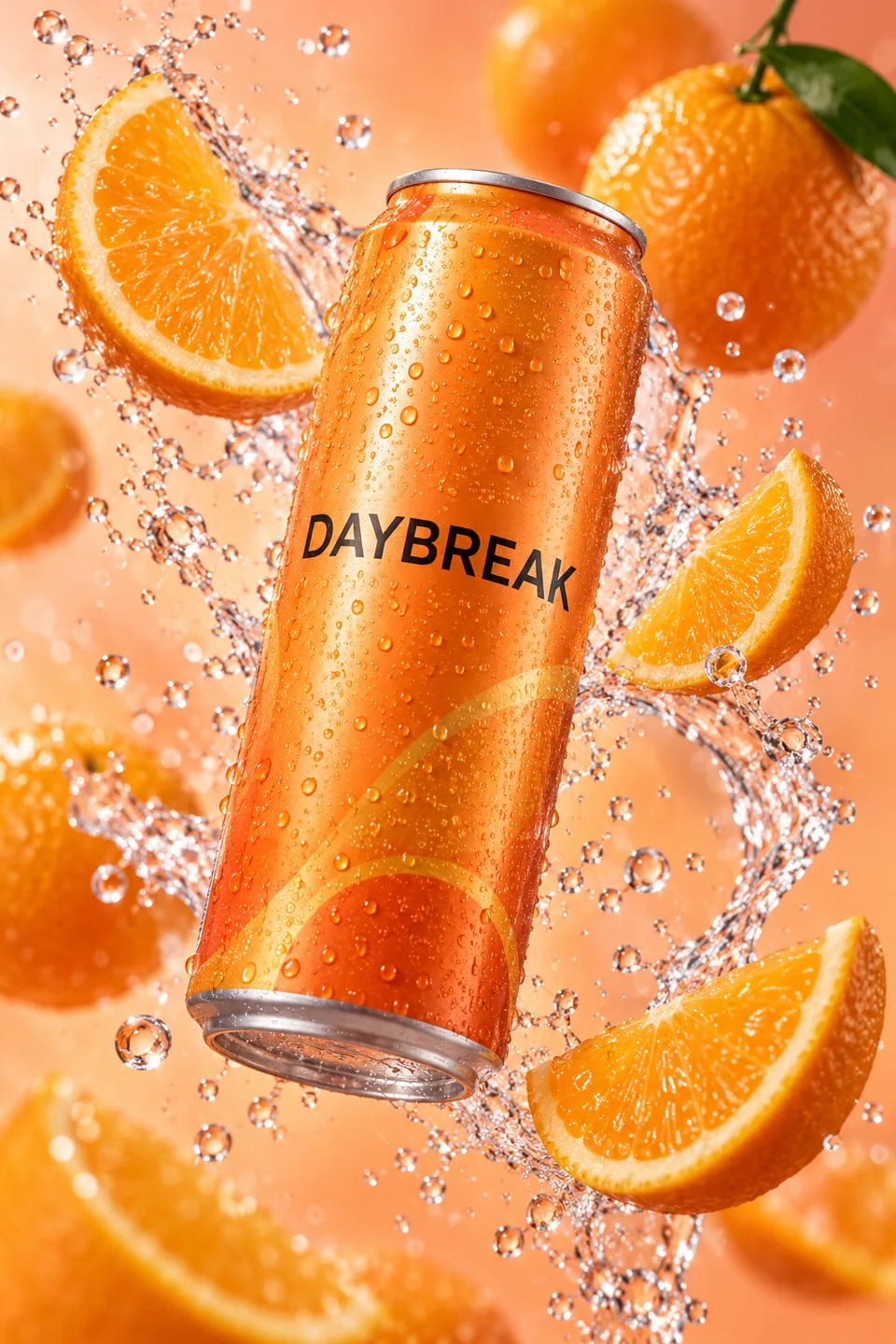
A square product card and a vertical social creative need different compositions. Choose the ratio first, then describe where the product sits, how much space it occupies and which background details should remain visible. Leave deliberate room for copy if your campaign needs it.
The Imagen converter builds a text-only generation request. Its familiar size values are translated into aspect ratios, rather than used as a promise of those exact pixel dimensions. Quality values are mapped separately to 1K or 2K. A product reference upload is not converted into an Imagen edit by this path.
Good questions. Clear answers.
Still curious? Browse all FAQs
Does 1536×1024 request that exact output size?
For this connector, that size maps to a 3:2 aspect ratio. The Imagen image-size setting is handled separately, so do not treat the source size string as an exact pixel-output promise.
Can Imagen Standard edit an uploaded photograph here?
The implemented Imagen image request is text-only. Use a verified reference-image route when your brief depends on an existing photograph.
Give the image a place to land.
Choose the ratio, write the scene and review the enabled settings.